A JSON Crack alternative for large files: GigaJSON
· 5 min read
If you are looking for a JSON Crack alternative because your export has become too large to explore comfortably, try GigaJSON's large JSON viewer. Its main advantage is a workspace for moving between records, queries and edits without having to draw your whole document as a diagram.
We build GigaJSON, so this is our explanation of where it fits. It is not an independent benchmark or a claim that every JSON user should switch. The comparison below was checked on 7 October 2026; screenshots show synthetic data in the actual GigaJSON app.
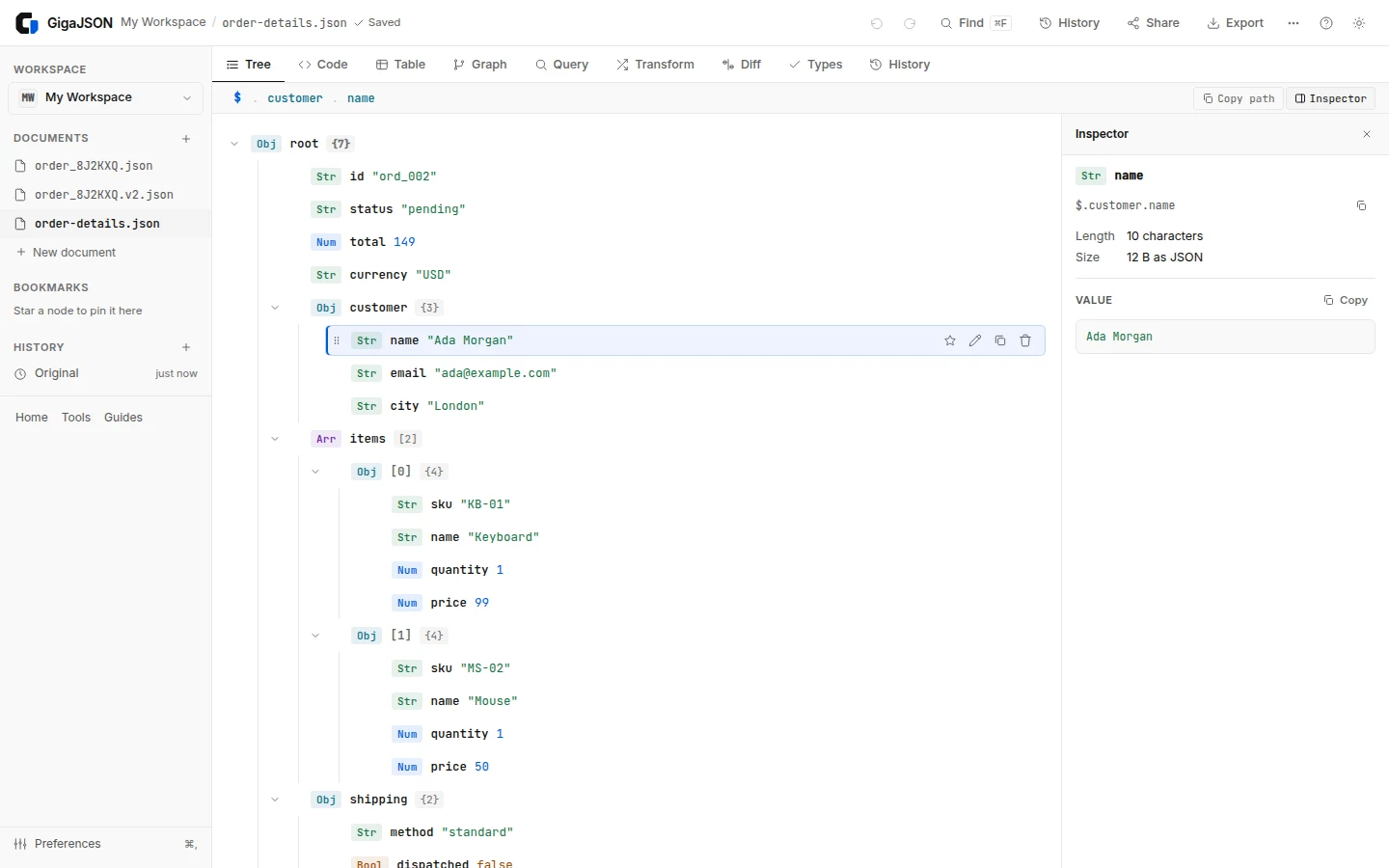
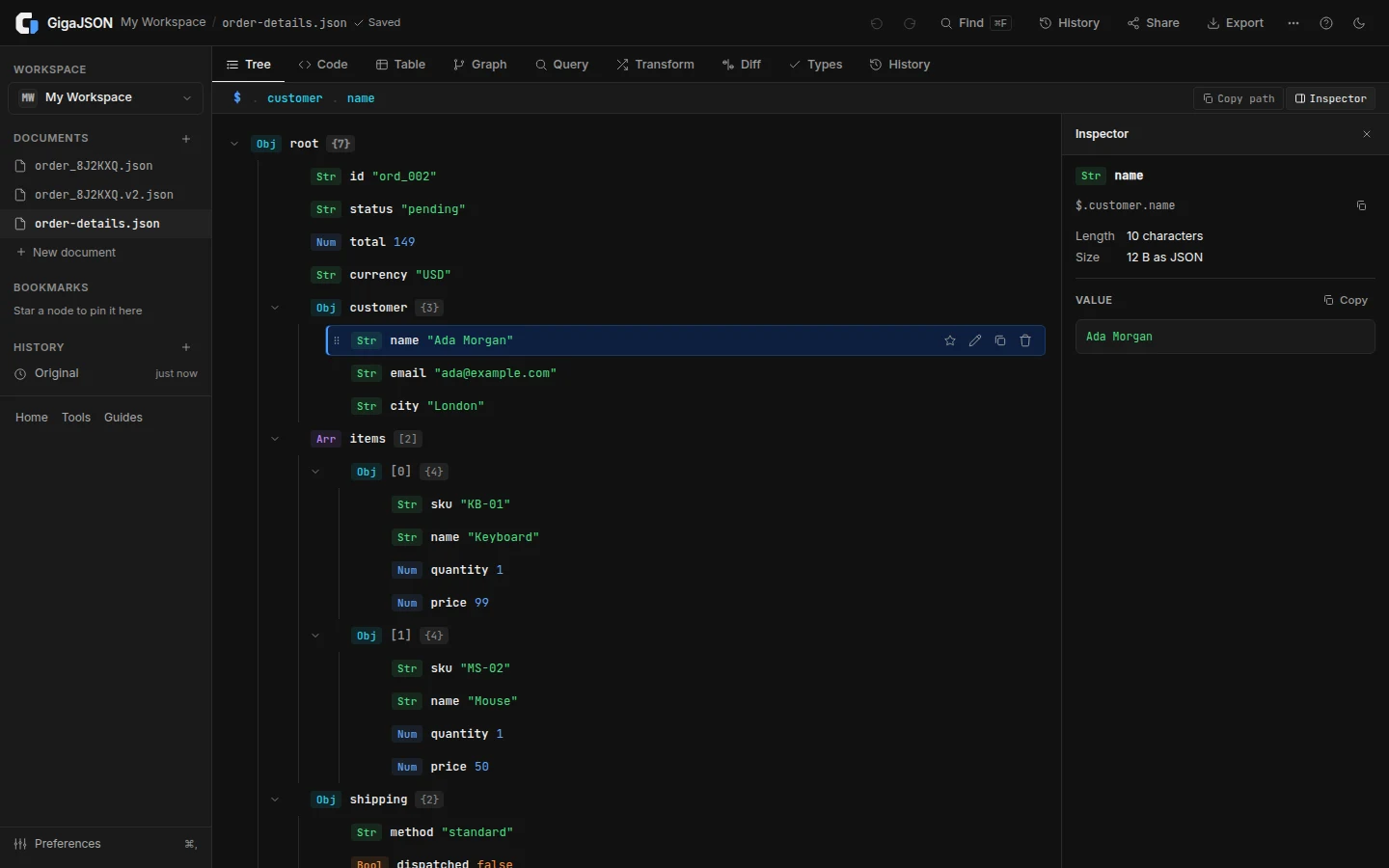
Choose a view for your task
A diagram is useful when you need to explain how an object is structured. A table is useful when you need to find the unusual record among thousands of similar records. A query is useful when you already know the condition you want to test.
Those are different jobs. A tool can be excellent at one without being the right default for all three.
JSON Crack's official site emphasizes interactive graphs and image export. Its FAQ currently describes visualization of approximately 300 KB, varying with document complexity and hardware. It also lists converters and query tools, and says document processing happens locally. Its free viewer and the separate ToDiagram product should not be treated as the same offering.
GigaJSON's focus is large-file inspection: browse a bounded tree, select an array for Table, run a query, and keep documents and restore points in a local workspace. A graph is available too, but it is one view of the document.
| Your immediate task | Where to start |
|---|---|
| Explain the structure of a small payload as a diagram | Try JSON Crack's graph workflow and GigaJSON's Graph view; choose the presentation you prefer. |
| Inspect a large export with many repeated records | Start with GigaJSON Tree and Table. |
| Find records matching a condition | Use a query engine you know; GigaJSON offers JSONPath, JMESPath and jq, with different limits. |
| Compare a payload before and after an edit | Use GigaJSON Diff and History. |
| Format a small JSON snippet | Either may be sufficient; GigaJSON also has a standalone formatter. |
Why a table can be more useful than a graph
Suppose an API returns 50,000 orders. The shape of the first order may explain almost everything about the other 49,999. Drawing every record adds visual repetition; it does not automatically reveal which order failed.
In GigaJSON, open the export and switch to Table for the relevant array. Columns put the same field from different records beside each other. Sorting and filtering help you investigate values rather than repeatedly expanding identical branches.
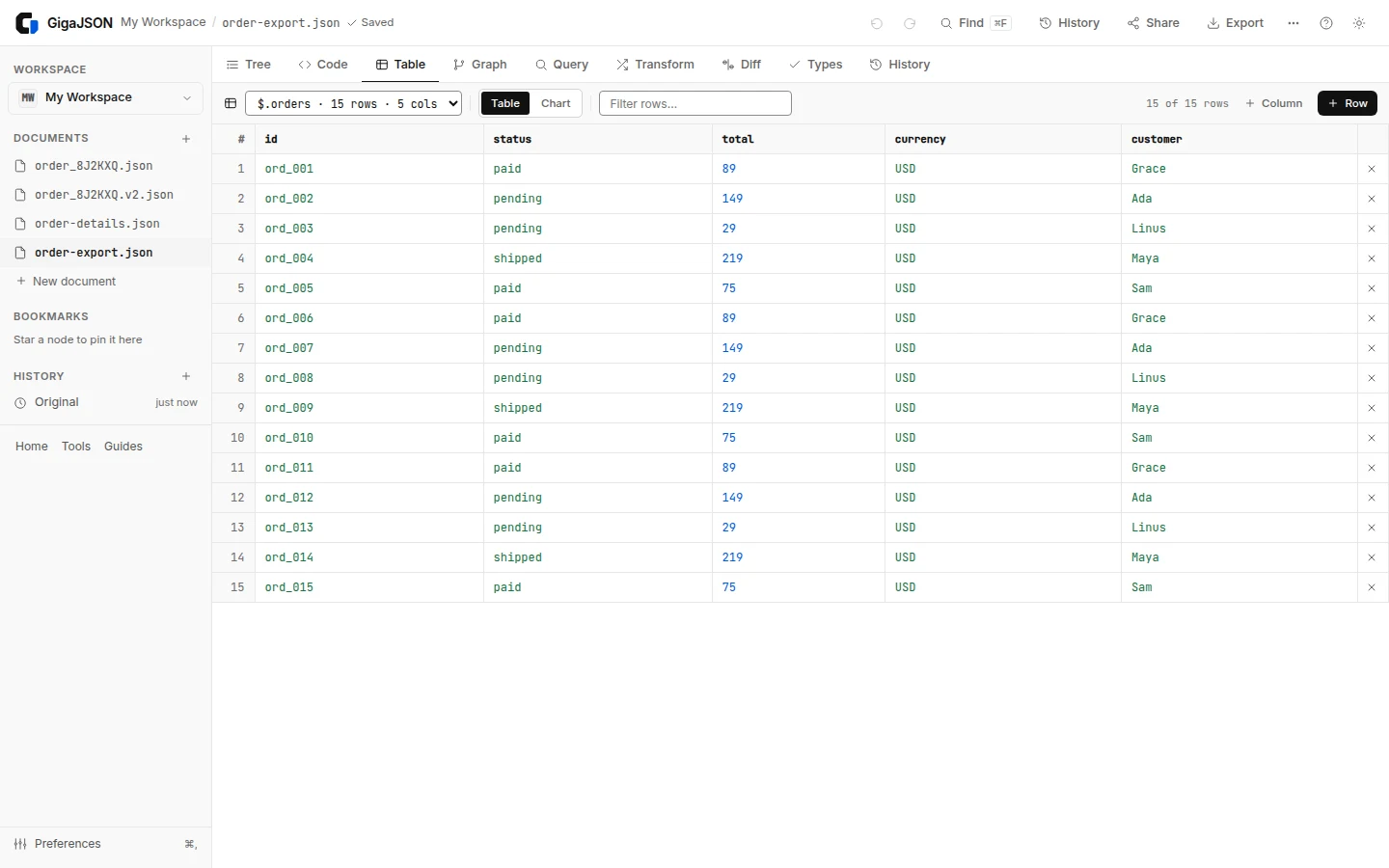
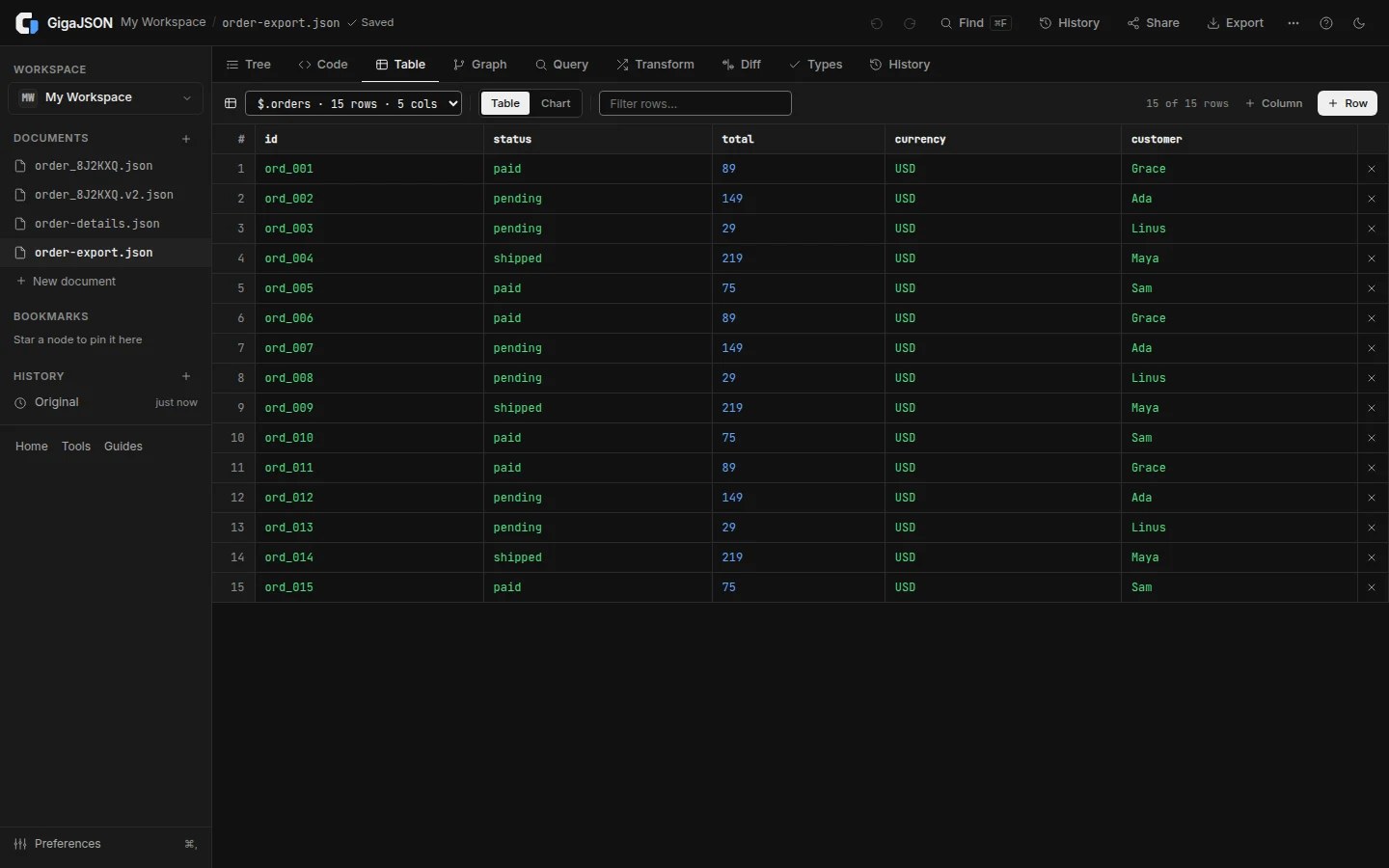
For example, this sample has one order over 100 that is still pending:
{
  "orders": [
    {"id": "ord_001", "status": "paid", "total": 89},
    {"id": "ord_002", "status": "pending", "total": 149},
    {"id": "ord_003", "status": "pending", "total": 29}
  ]
}
In the workspace's Query tab, select JSONPath and run:
$.orders[?(@.status == 'pending' && @.total > 100)]The result is ord_002. You can move back to the tree to inspect that record's surrounding structure. Our query language guide explains when to use JSONPath, JMESPath or jq.
Large-file support is about the whole workflow
GigaJSON parses documents in a worker and renders visible portions of the tree and table. This reduces the amount of document data the page needs to render at once. The document still needs memory, and keeping it in a workspace also uses browser storage.
Our large-file guide includes measurements for opening generated files up to 1 GB, with the browser, hardware and test date. Those measurements describe opening and specific operations. They are not a promise that every 1 GB document, query or conversion will work equally well.
There are practical limits to know before choosing:
- The full Code editor opens up to about 100 MB of formatted text, with a prompt for large documents. Larger documents use a read-only text view, with smaller parts editable separately. Formatting can make a compact file considerably larger.
- jq has a separate 20 MB input limit in this app. Use an appropriate JSONPath query for a larger document, or process it with a command-line tool.
- Large-document checks run in the background. An edit or export immediately after opening may wait for the number-precision check to finish.
- Very large exports need enough RAM and browser storage. A browser workspace is not a replacement for streaming a multi-gigabyte data pipeline.
If your main task is a one-off streaming transformation, a command-line workflow can still be the better choice. GigaJSON is useful when you need to inspect and understand data interactively.
Saved history changes how you debug
Formatting tells you how a document looks now. A saved restore point lets you ask what changed since you started.
In GigaJSON, keep the response in the workspace, save a version before an important change, then use History and Diff to inspect the result. This is useful when trying a transform or preparing a sample response for a bug report. Our JSON comparison walkthrough demonstrates the difference between changed values, reordered keys and reordered arrays.
The saved workspace is local browser data. It is convenient working storage, not an external backup; download important results separately.
Privacy is not an exclusive advantage
JSON Crack says it processes documents on your device. GigaJSON also processes documents locally. We do not claim that choosing GigaJSON is the only way to avoid uploading JSON.
GigaJSON does not require an account. Its website has usage analytics, separate from document processing; see the privacy policy. When you open a URL, your browser still contacts that source. Linked media can also make requests if you choose to load it.
Try the task that made you look for an alternative
Open GigaJSON with a representative, non-sensitive file. Find one known record in Tree, inspect its array in Table, and run one query whose answer you already know. Then make a small change and check it in History.
If that flow makes a large export easier to work with, GigaJSON is a good fit. If the main deliverable is a diagram of a small object, compare the graph experiences directly. The useful question is whether the tool makes your next debugging task easier.